- Projects
- Internal Dashboard
An all-in-one Internal Dashboard, concept to production in under two weeks.
As Director of Business Operations at Doodle Pirates Foundation, I designed one role-based platform for the whole team and shipped it fast by directing Cursor cloud agents and reviewing every change.
- Org
- Doodle Pirates Foundation
- Role
- Director of Business Operations
- Stack
- React + Vite, Hono, Cloudflare Worker, Airtable
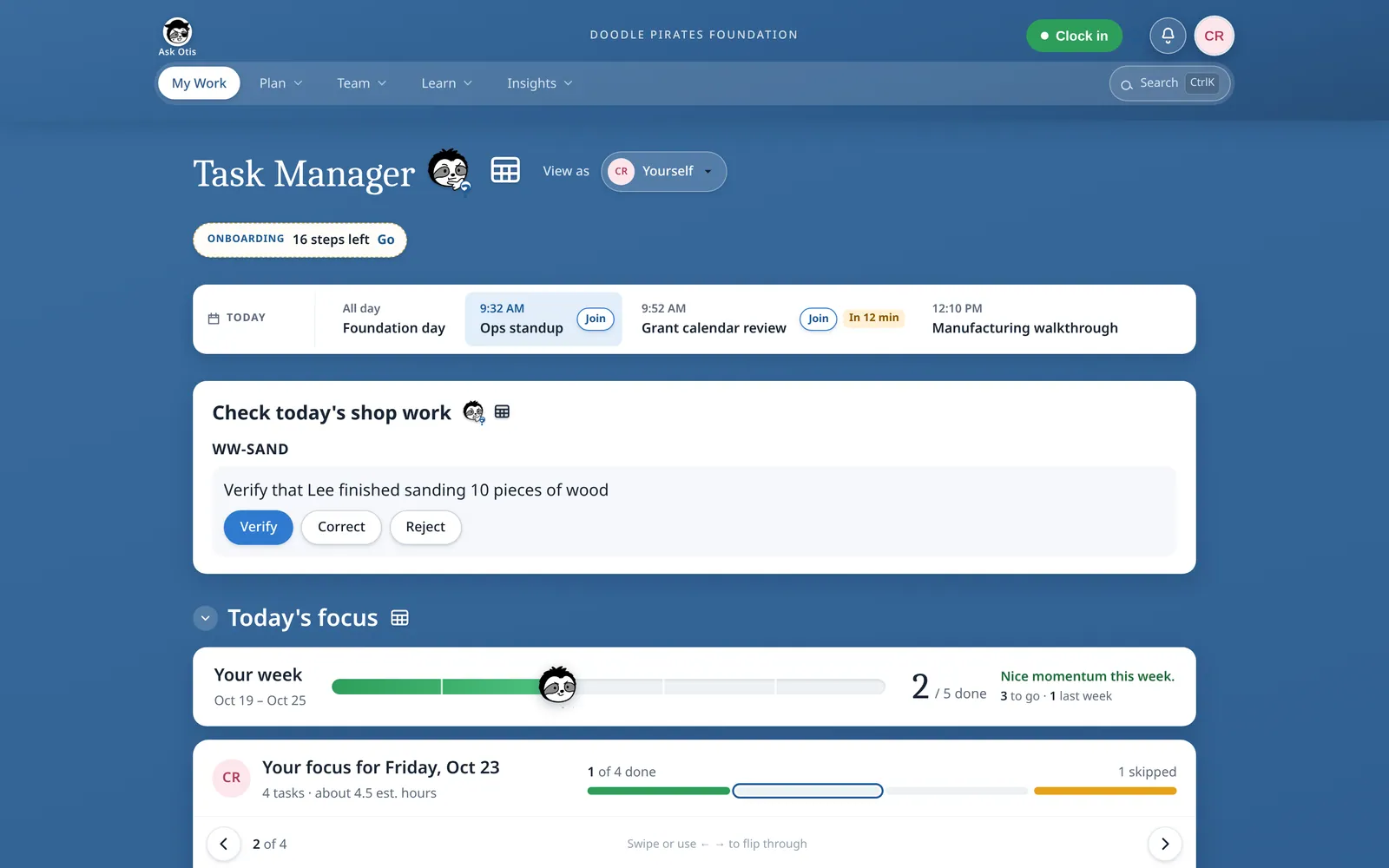
The savings figure is my estimate, per employee per year. It is not audited.
The problem
The team was disconnected: projects and tasks lived in different places, so nobody could see who was doing what. As a nonprofit startup we couldn’t afford a stack of subscriptions, and we employ neurodivergent people, so everyone learns and works differently. I designed one affordable, easy-to-use system with one place to see what to focus on.
What it does
One role-based platform replacing a stack of separate tools. By my estimate, it avoids $1,000+ per employee in annual software costs.
- Project & task management
- Daily focus
- Onboarding (intern and volunteer tracks)
- PTO
- Documentation
- Shift scheduling
- Time clocking
- Hours export for payroll (beta)
- Manufacturing shop-floor kiosk
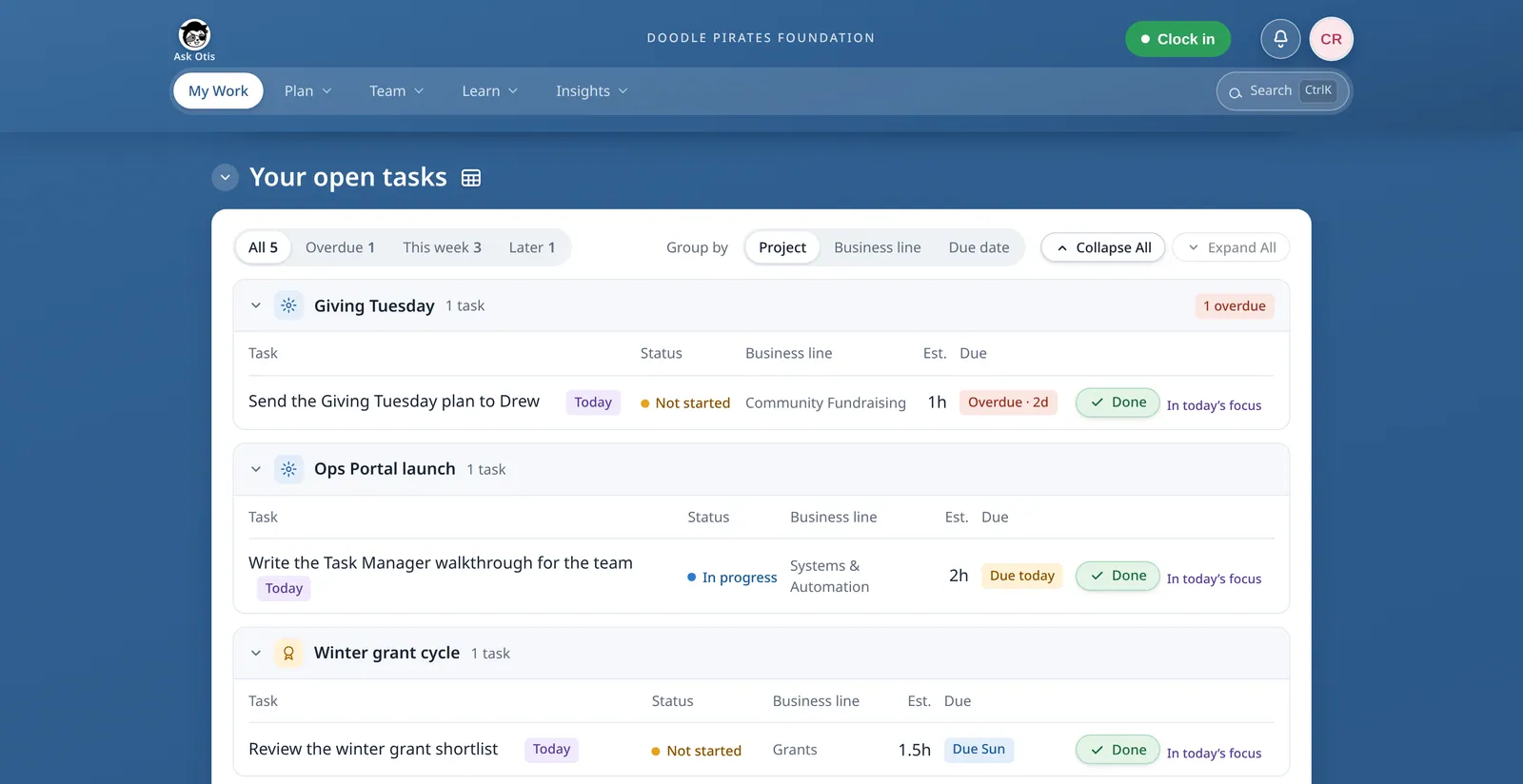
Plan: milestones and a live timeline
Each department gets a Gantt-style timeline of its projects and milestones, with counts for what’s open, next and blocked. Dependency lines show what waits on what. Hover for details, or click to edit the record in Airtable.
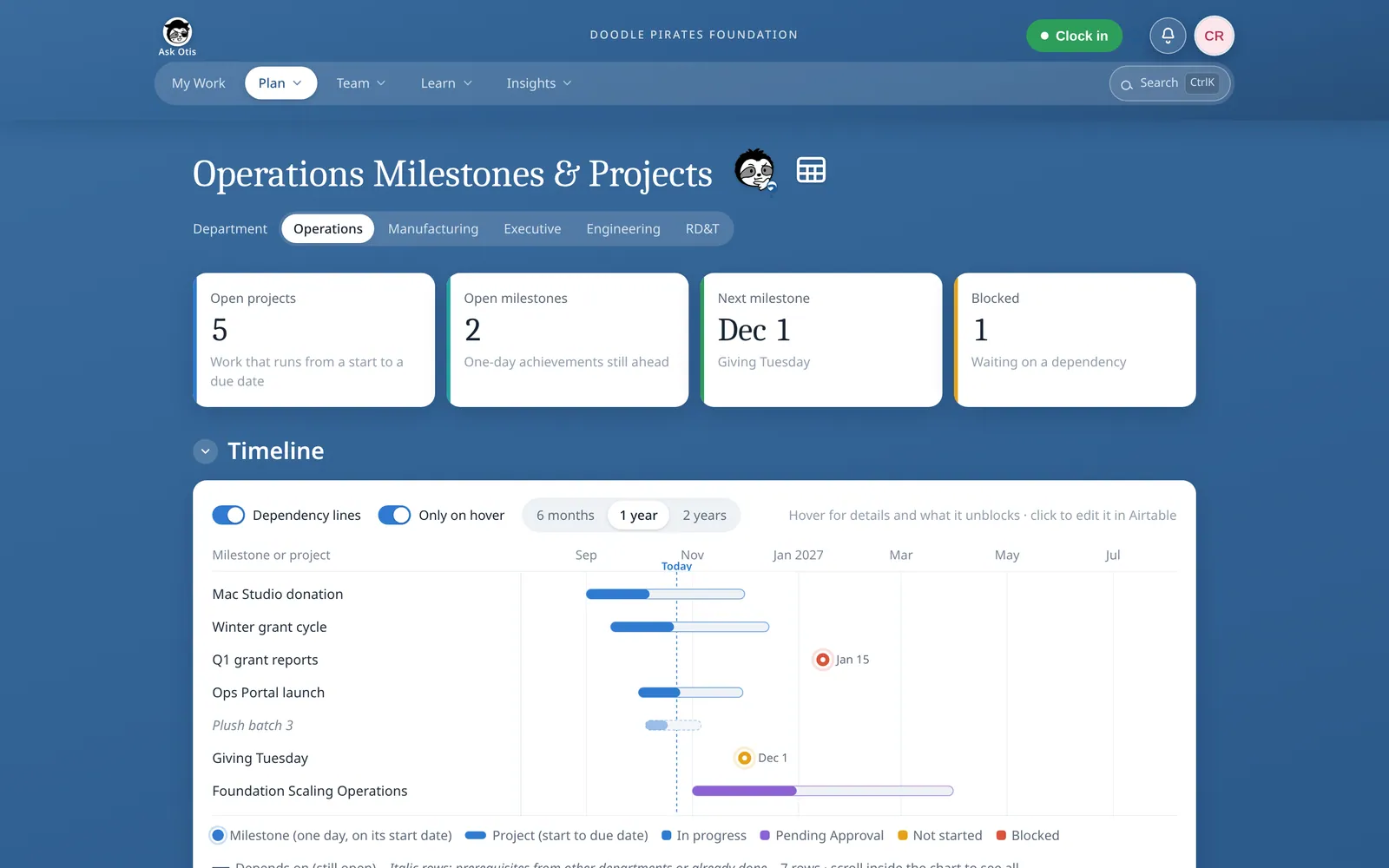
Ask Otis
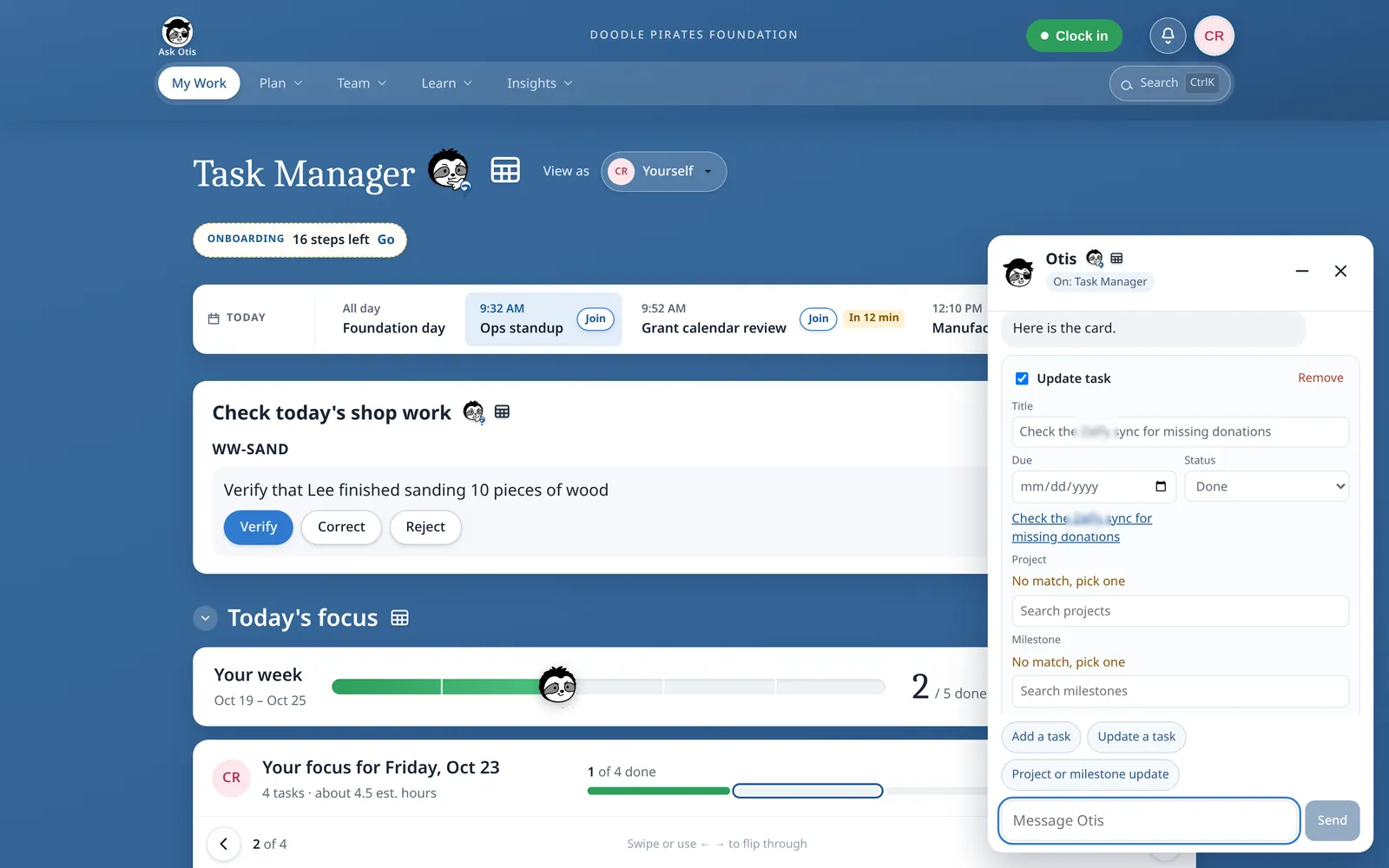
Ask Otis is a Claude-powered assistant built into the dashboard. Ask it to add or update a task, project or milestone and it returns an editable card. Nothing changes until the person presses Approve; the server rechecks permissions before saving.
From meetings to daily focus
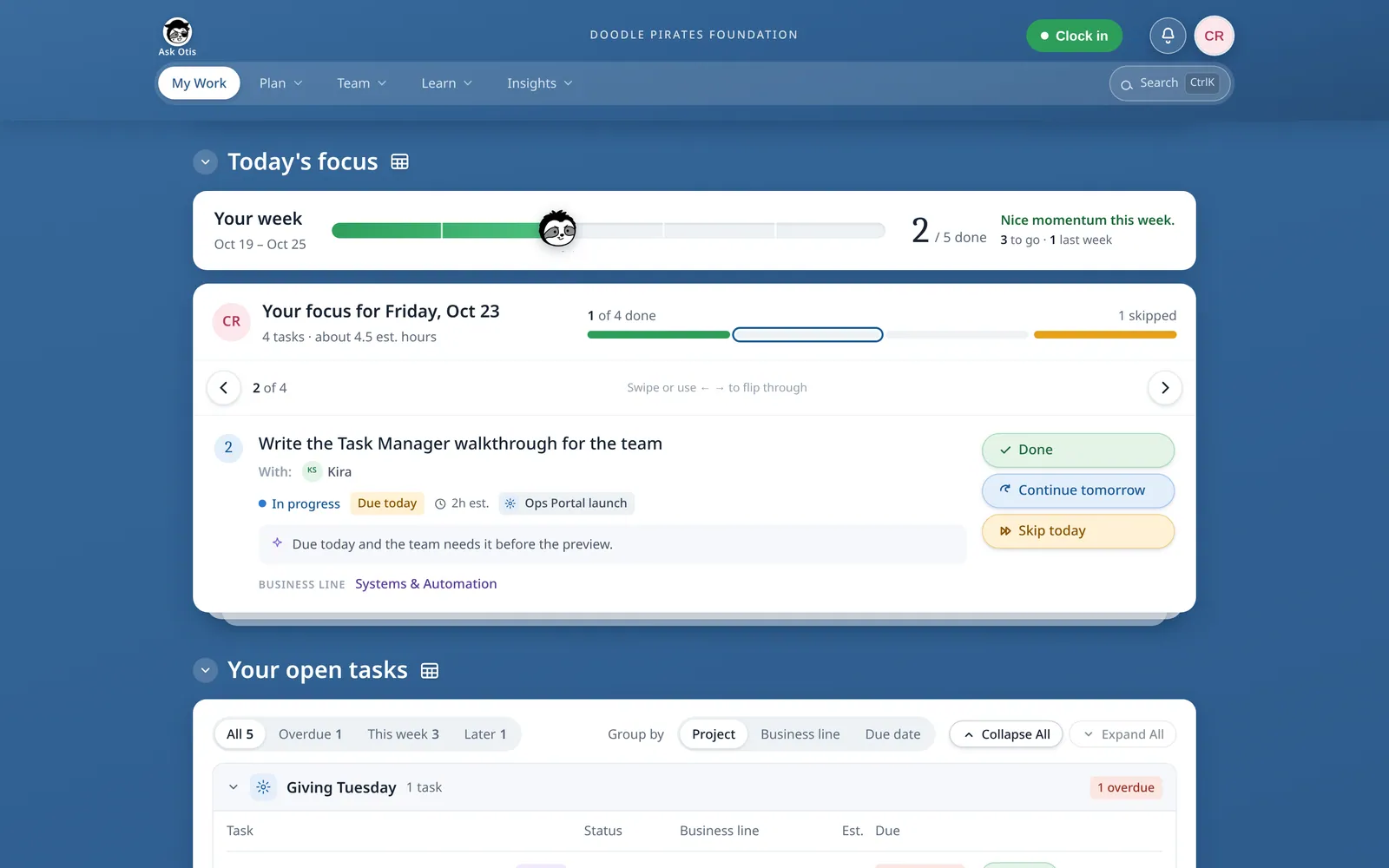
The dashboard doesn’t read meeting notes. Action items reach the task list from people and from AI assistants we run outside it. Every weekday at 6:30 AM it picks each person’s daily focus, with a rule-based fallback if the AI is down.
How data flows
Everyone signs in with a work Google account, and every write passes a permission check before reaching Airtable, the source of truth. Docs are real Google Docs, calendar sync is one way, and Ask Otis only suggests.
Text version of the diagram
- Team member (browser, phone or shop-floor kiosk) → Cloudflare Access. Sign-in with a work Google account, before anything else loads.
- Cloudflare Access → Dashboard (React + Vite). Signed-in requests. Each person’s Employee Level decides what they can see and do.
- Dashboard → API (Hono, on the same Cloudflare Worker). Requests such as a task, a shift or a PTO day.
- API → Airtable (source of truth). Reads, and writes after a permission check on the server.
- API → Google Docs. Documentation pages, which are real Google Docs. The live editor saves a few seconds after typing stops.
- API → Google Calendar (one way). Shifts, PTO and sick days, pushed after a schedule save, a “Resync this week” press or a shop job assignment. Out-of-office days and holidays stay off the calendar, and nothing is read back.
- Ask Otis (Claude-powered assistant) → A person, for approval. Editable cards: a new task, a task update, or a project or milestone update.
- Approve → API, then Airtable. Only what the person approved is written, after another permission check on the server.
- Separately, each person’s own Google Calendar → My Work. Today’s meetings, read-only and private to that person. This is not part of the schedule sync and isn’t drawn above.
A day in the dashboard
From meeting action items to a confirmed week
01
Action items land in the task list
Meeting action items become tasks in Airtable.
02
Focus is picked at 6:30 AM
Three to five open tasks per person, each with a short reason.
03
Work the list
Each person marks a focus card Done, Continue tomorrow or Skip today. Done also closes the task.
04
Ask Otis, then Approve
Ask Otis turns a request into an editable card, saved only after Approve.
05
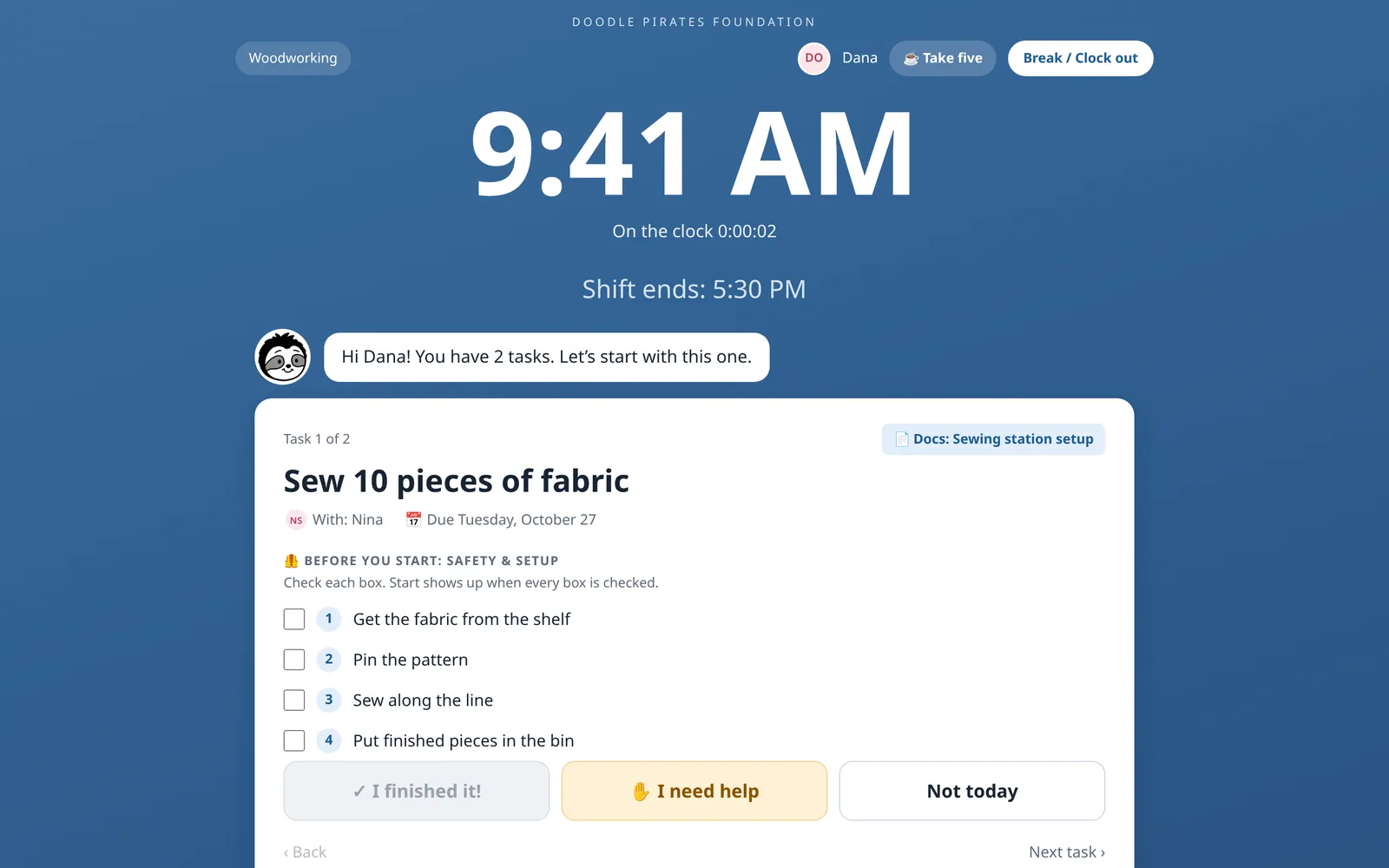
Clock in on the shop floor
Staff scan a badge, enter a PIN, clock in at a station and work through the task’s steps, tapping “I need help” if stuck.
06
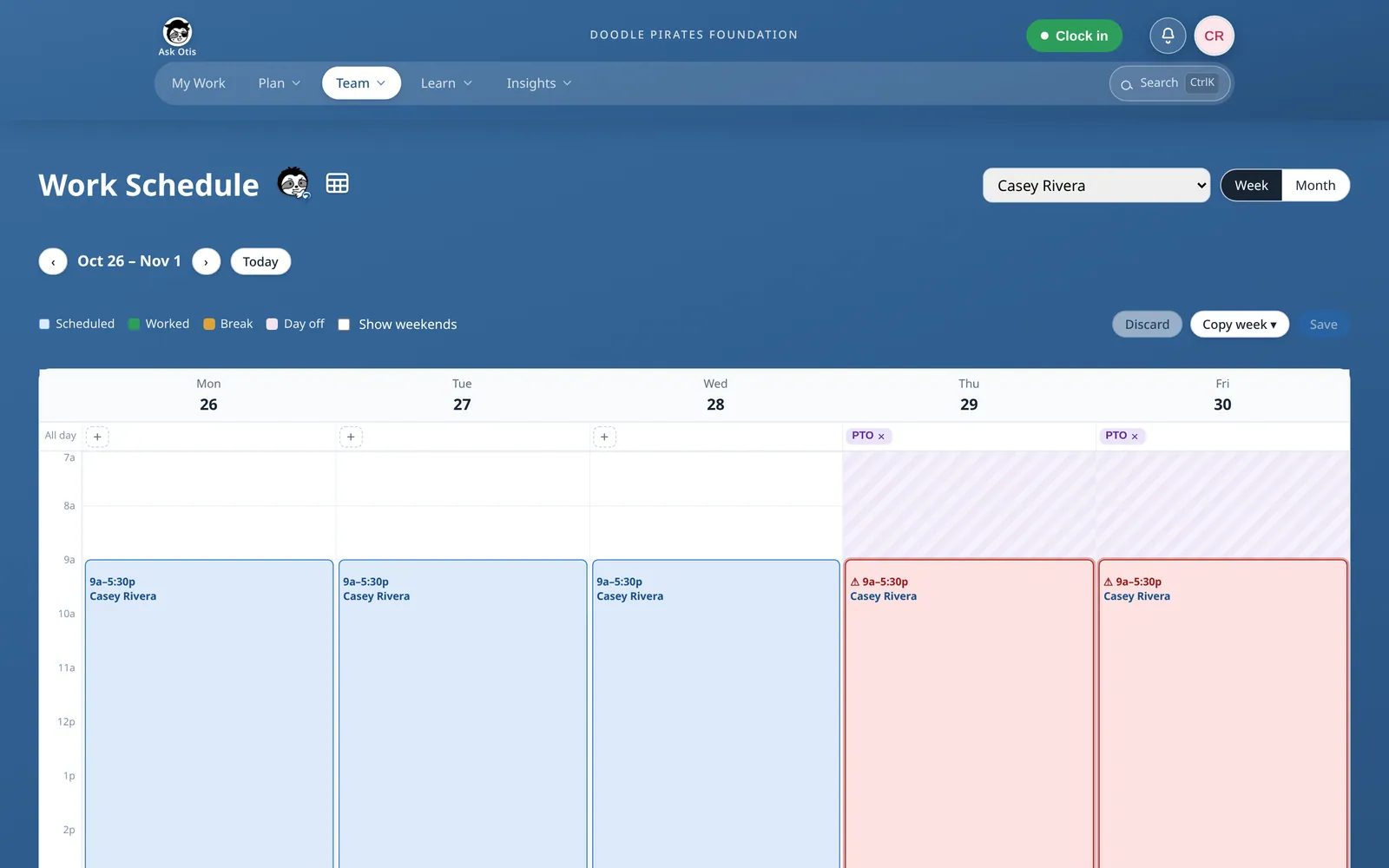
Check the schedule, add PTO
PTO saves right away and appears as a read-only event on the person’s Google Calendar.
07
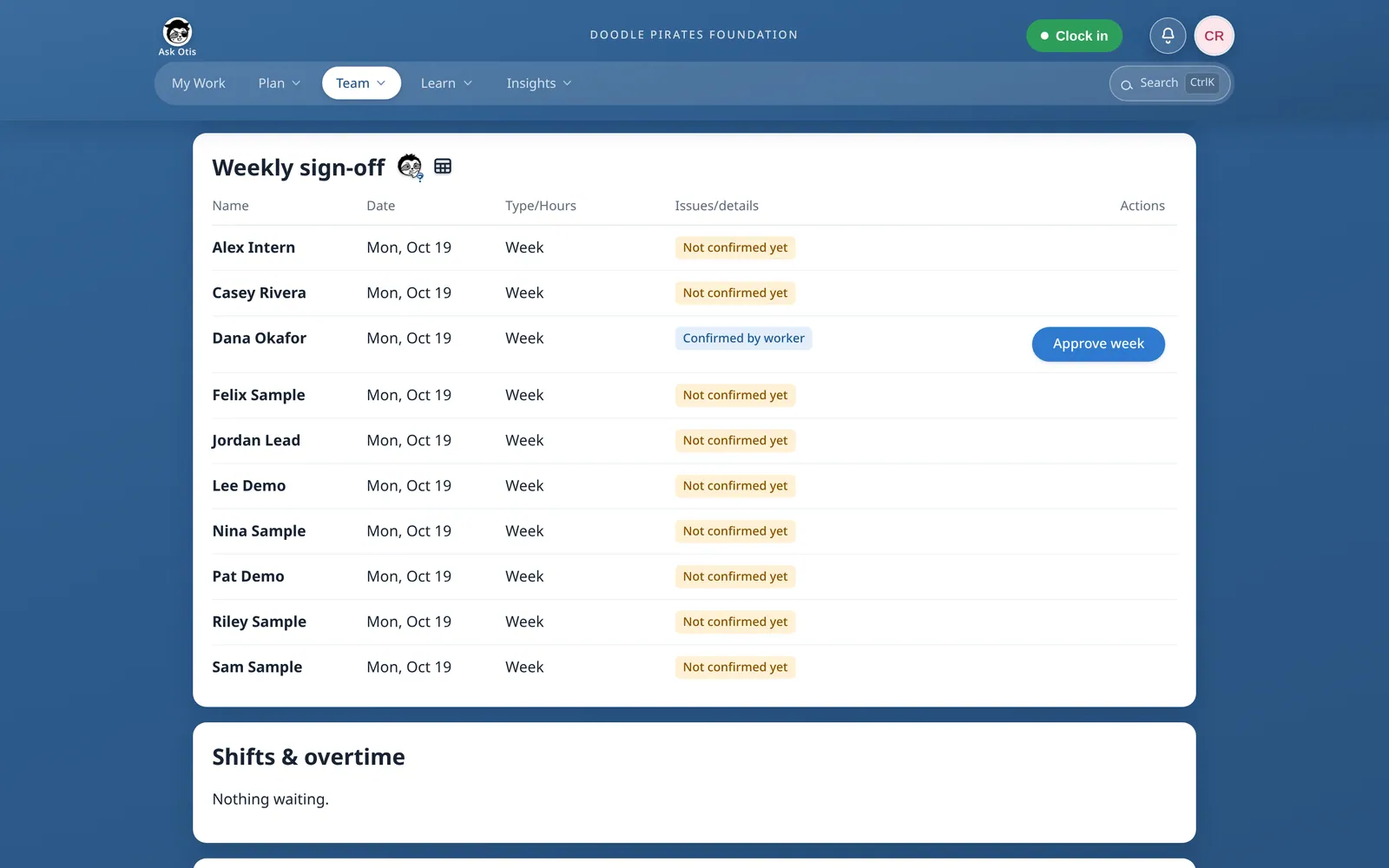
Confirm the week
Each person confirms their hours or asks for a correction, and their manager approves the week.
See it in motion
Sample-data screen recordings
How it was built
I set the requirements, structure and approval rules, and AI agents did the typing. I reviewed every change: 152 pull requests, backed by 1,218 automated tests.
- App
- React + Vite front end and a Hono API, on one Cloudflare Worker
- Sign-in
- Cloudflare Access with work Google accounts, gated by Employee Level
- Source of truth
- Airtable, with a server permission check on every write
- Docs
- Real Google Docs in a shared Drive, edited live by several people
- Caching
- Cloudflare KV, edge cache and Durable Objects, inside the free tier
- Built with
- Claude Code, Claude Design, Cursor cloud agents directed through Grok Bot
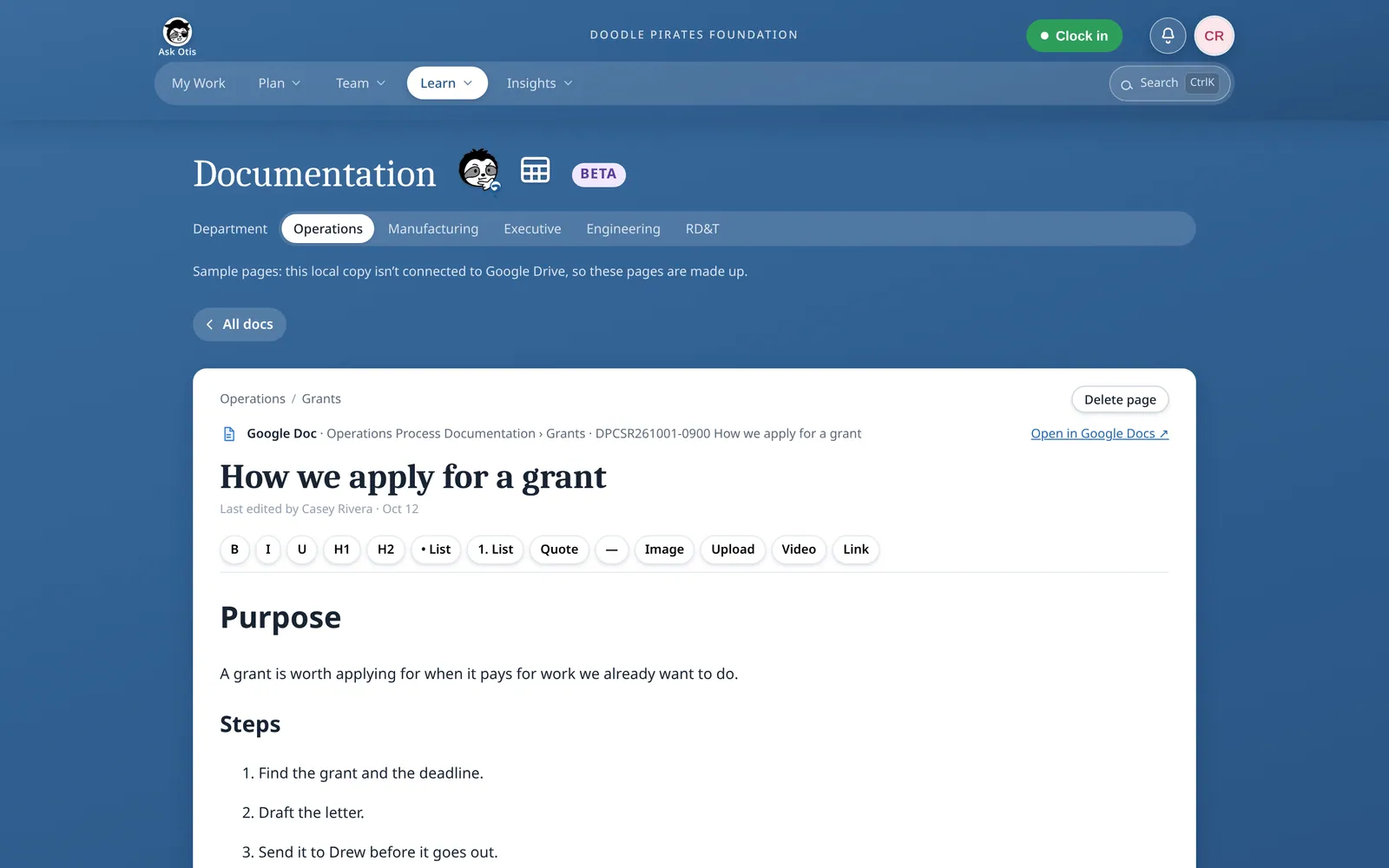
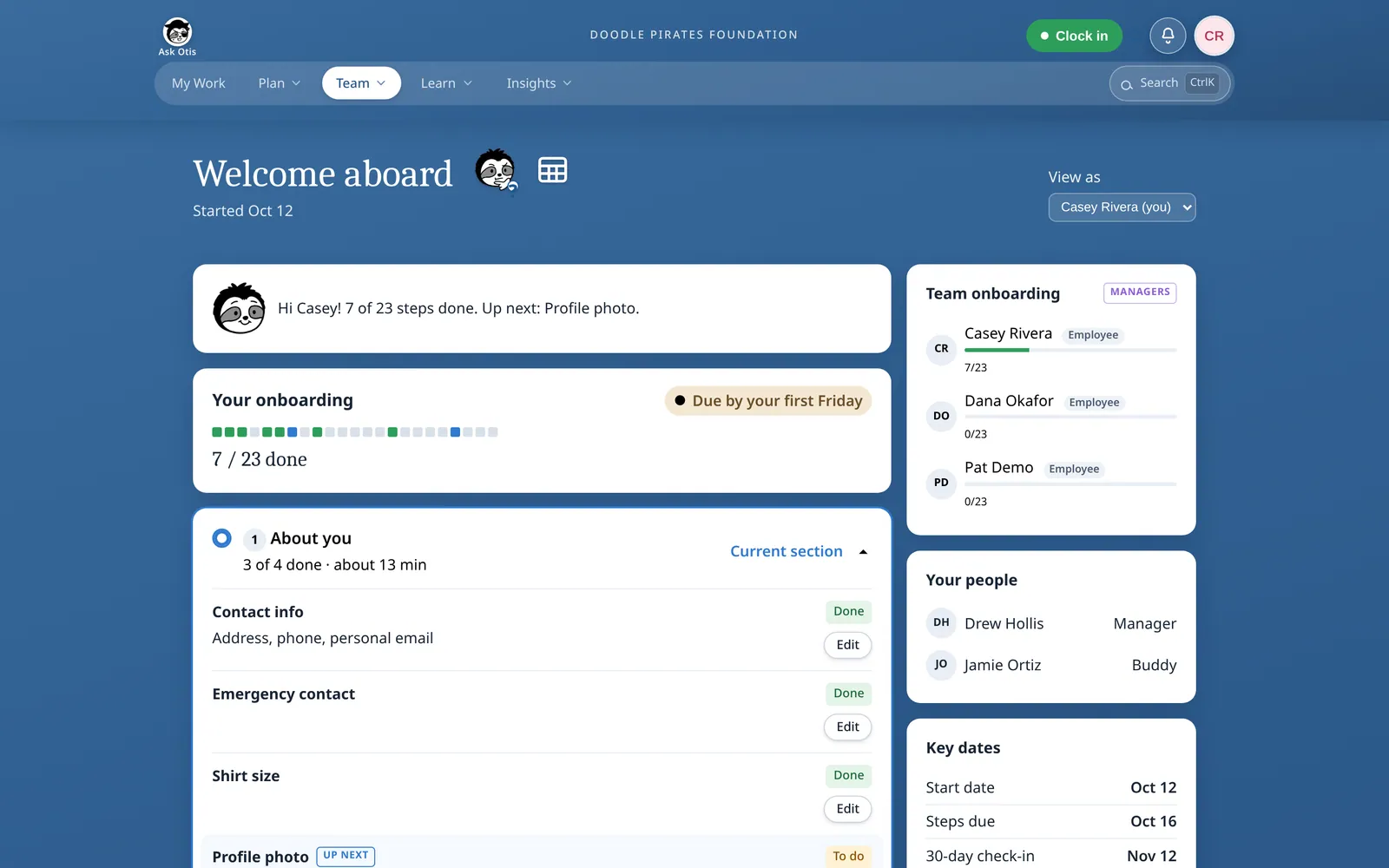
Screens
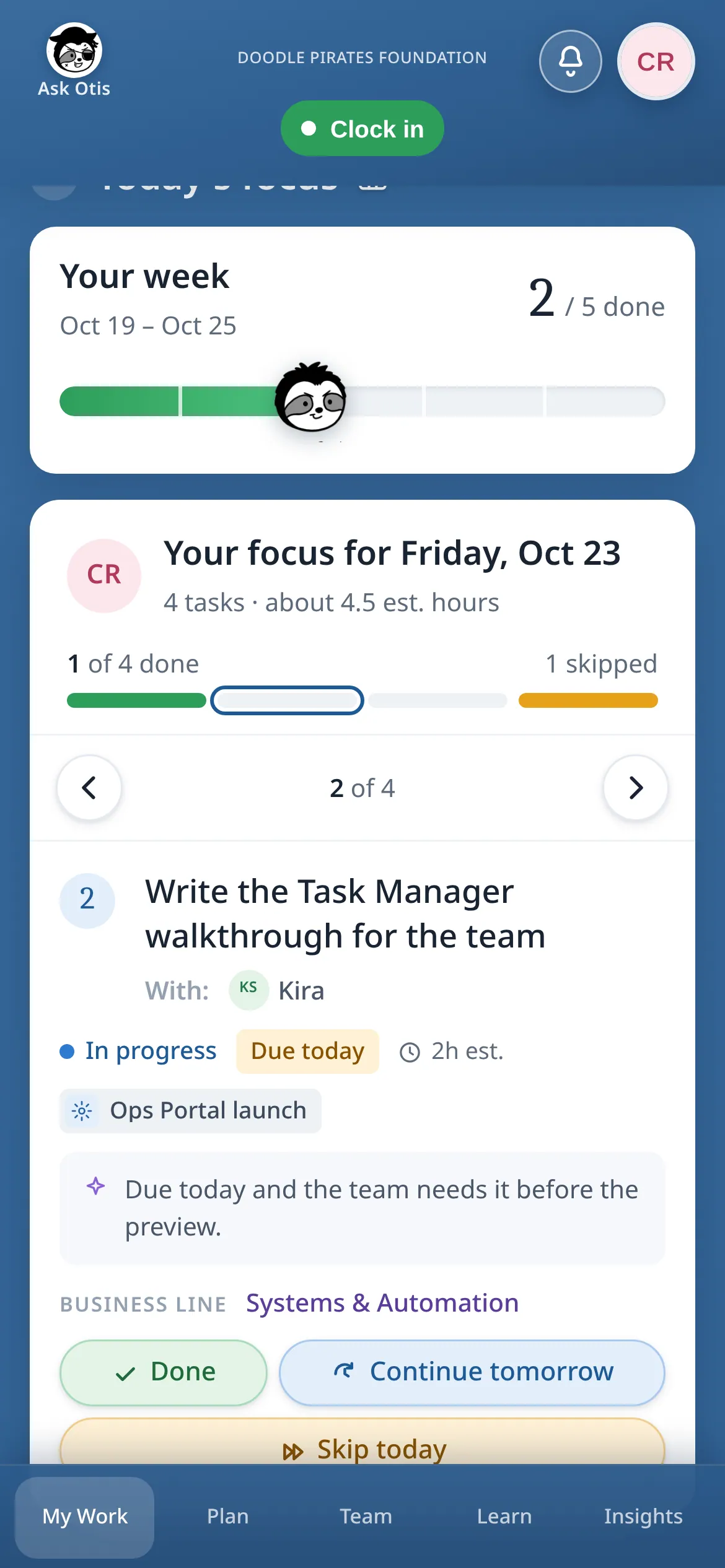
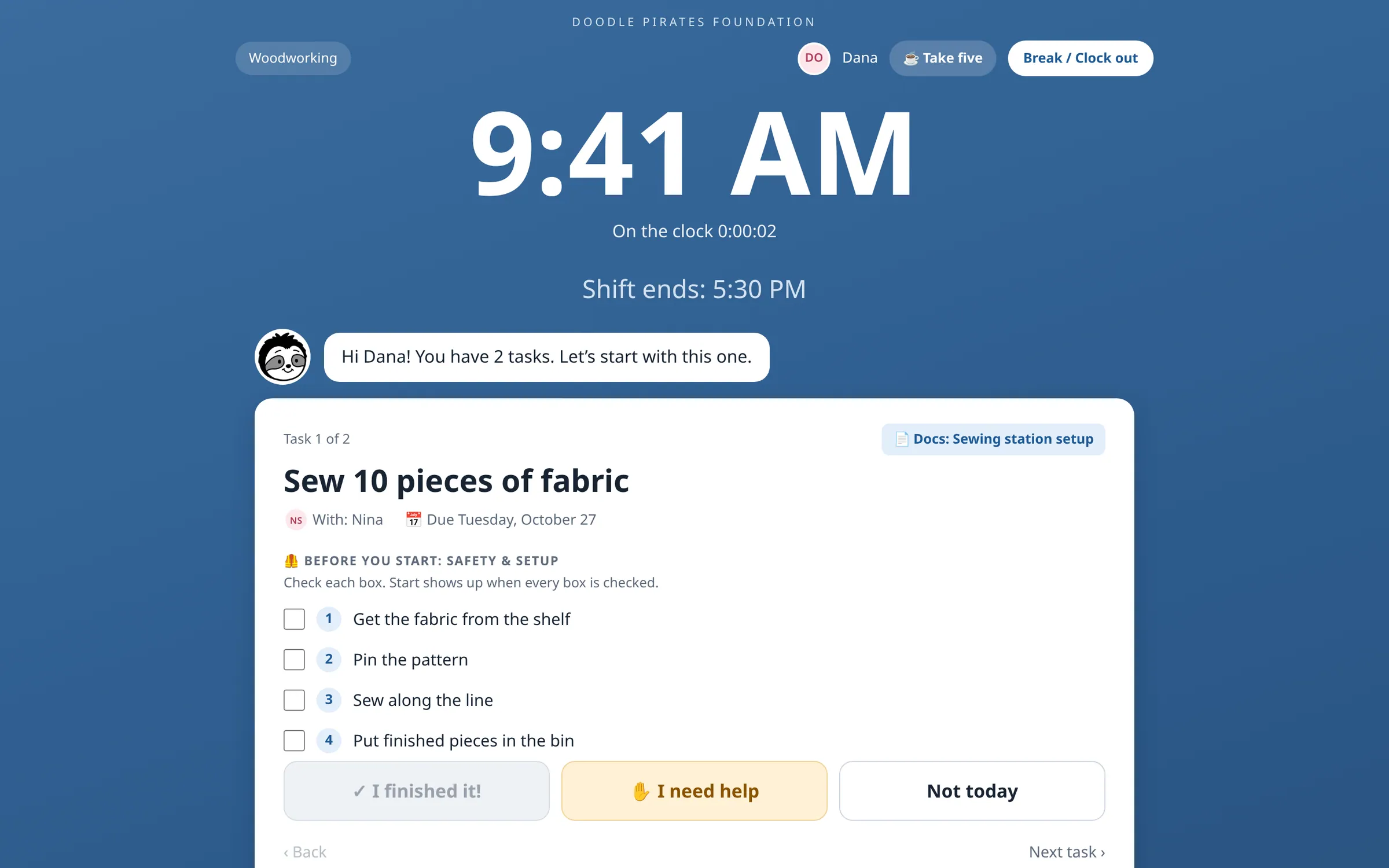
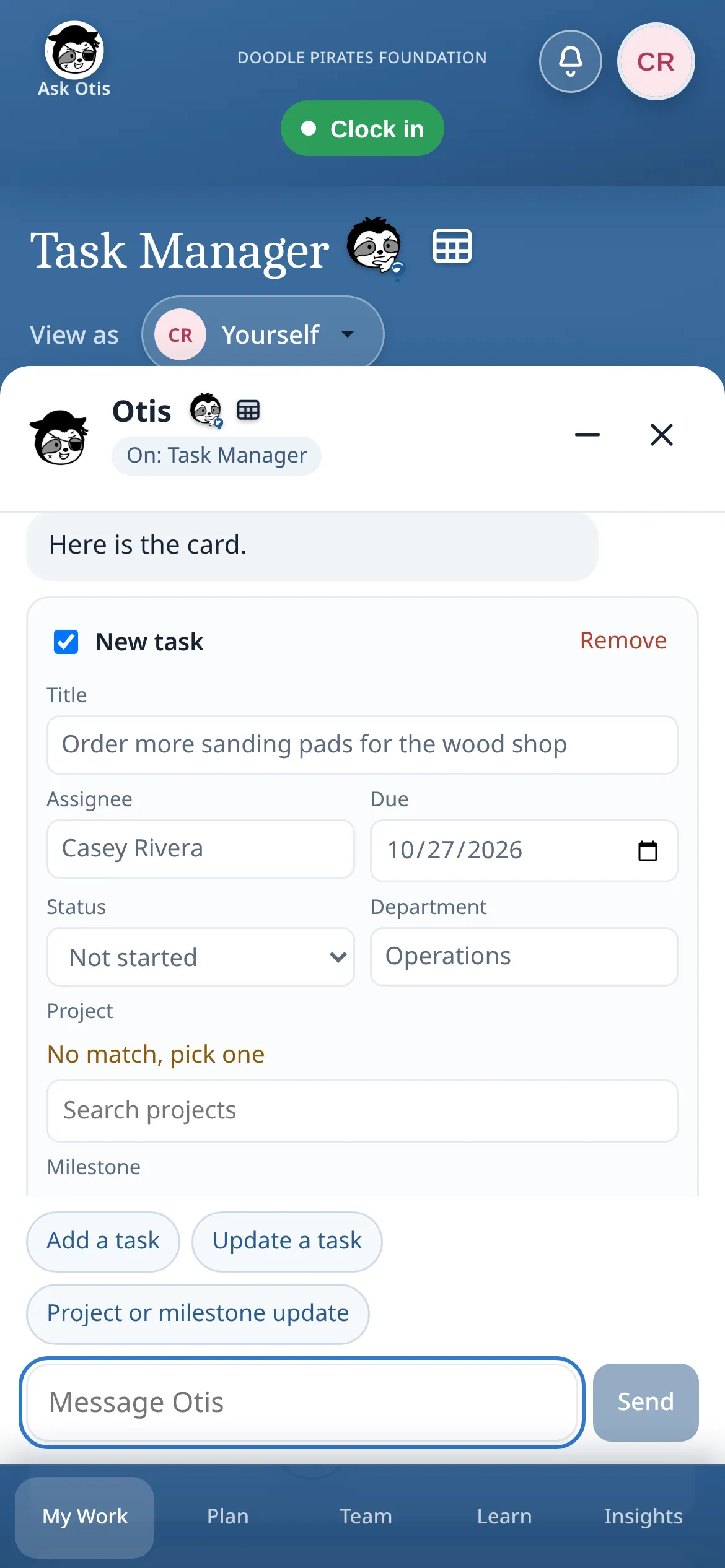
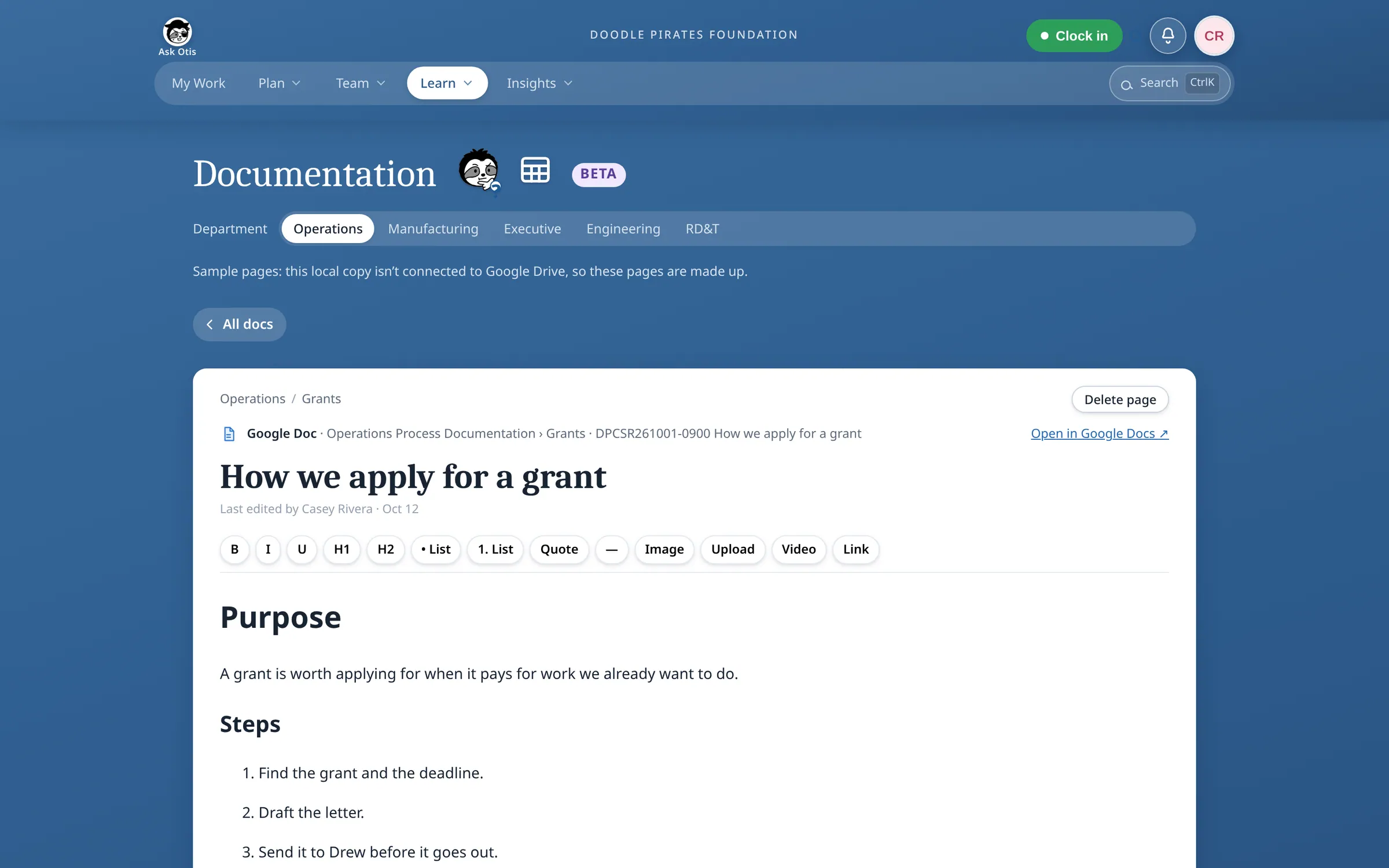
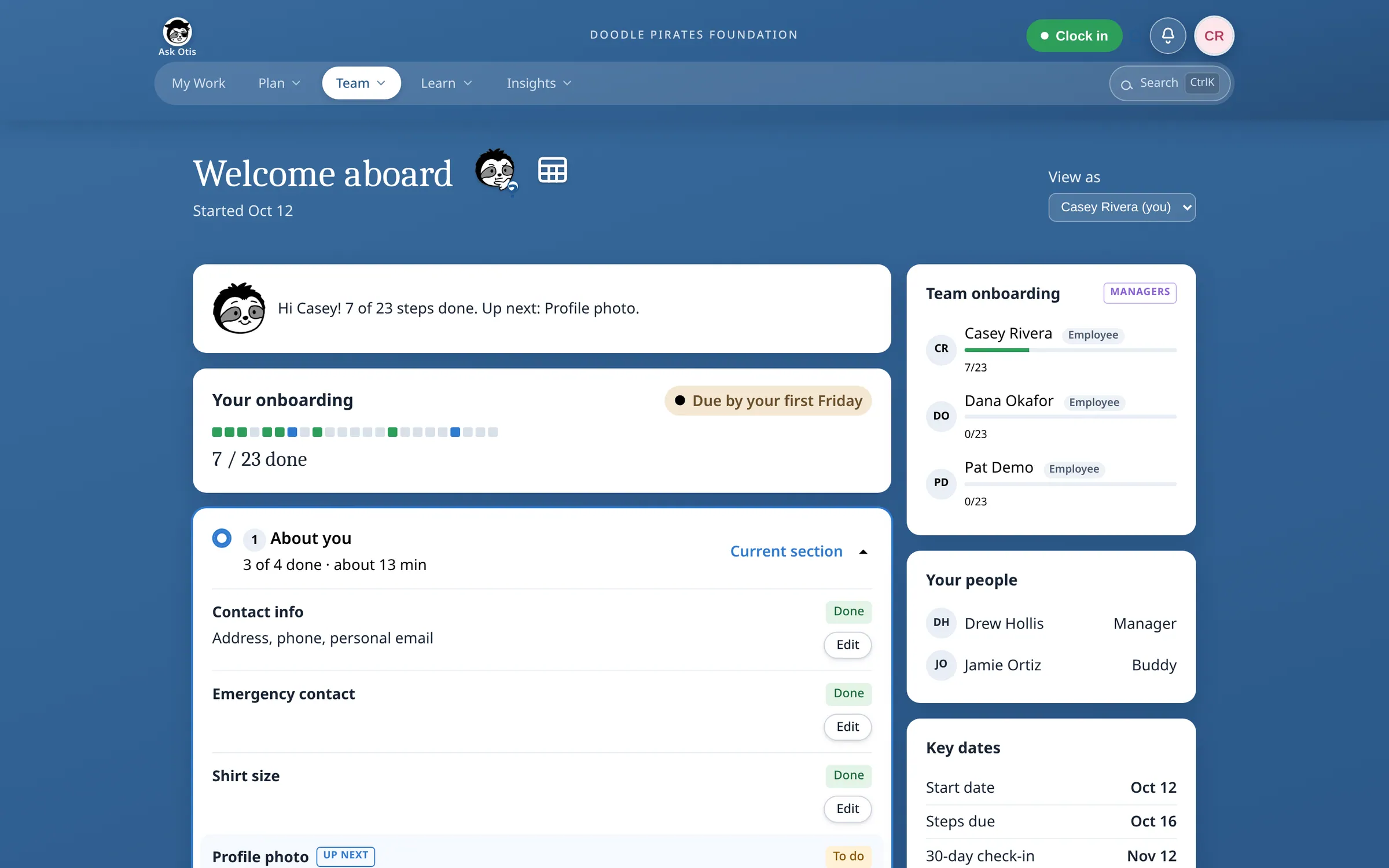
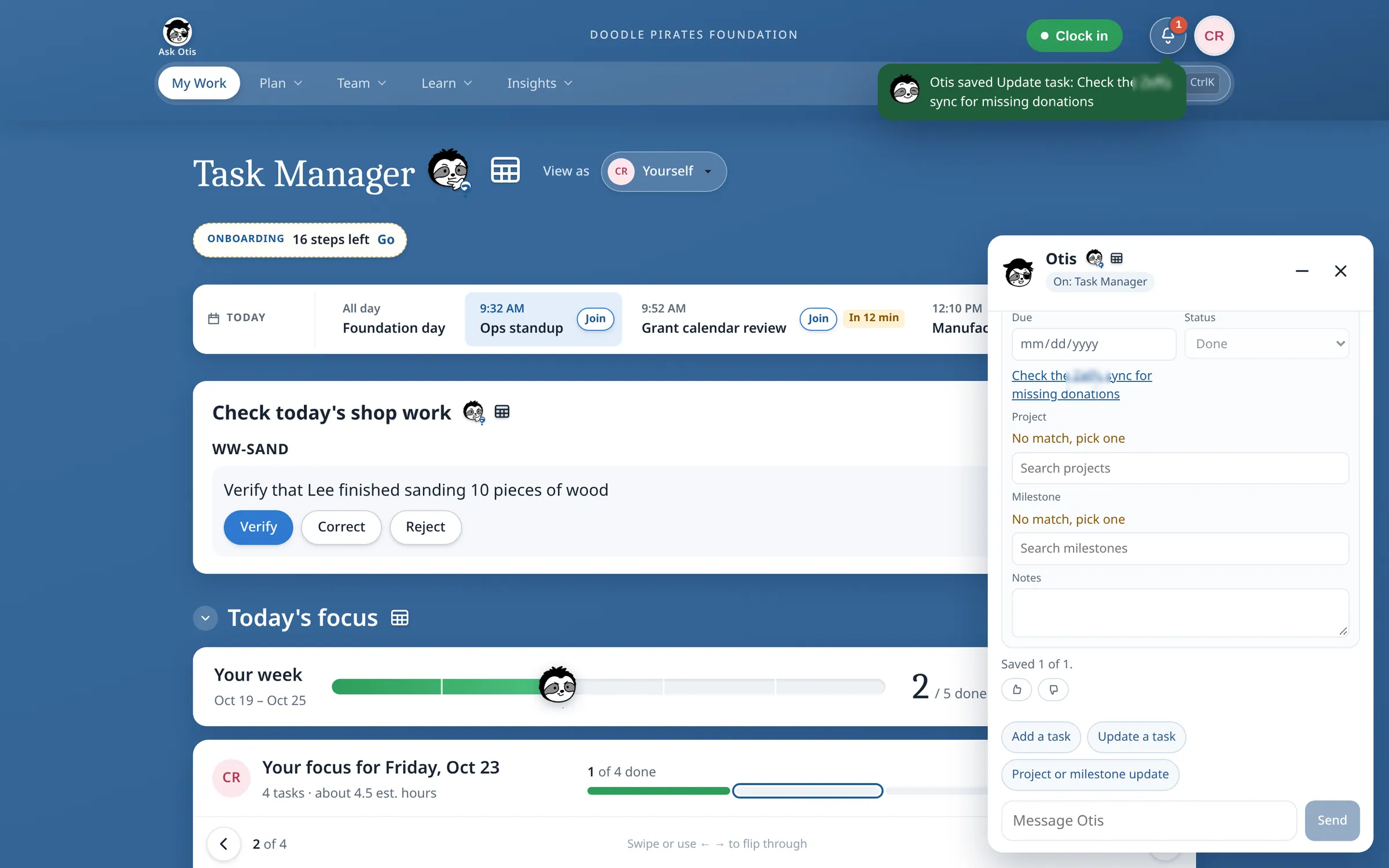
All names, tasks and numbers are invented sample data, and one vendor name is blurred. The dashboard and its code are private to Doodle Pirates Foundation.
What broke & how I fixed it
- Autosave could wipe a real document
The collaborative editor could save an empty page over a real Google Doc. I added guards that refuse empty or near-empty saves.
- Saving one department erased the others
Updating one department’s intern access deleted every other department’s permissions. Deletes are now scoped to the department being edited.
- Airtable quirks caused silent failures
Linked-record filters returned nothing and attachment uploads appended instead of replacing, so “Mark done” looked successful but didn’t stick. I fixed both and added tests.
- A duplicate constant stopped deploys
Two features merged the same day defined the same constant, which broke the build and paused deploys until I fixed it.
What I’d do differently
Build write-safety rules and contract tests against live data from day one, not sample data that hides real-world quirks.
Require a passing build before anything merges.
Ship fewer modules first and get the core task flows adopted before adding more.