- Projects
- Documentation
One library for every process doc, synced to the shared Drive.
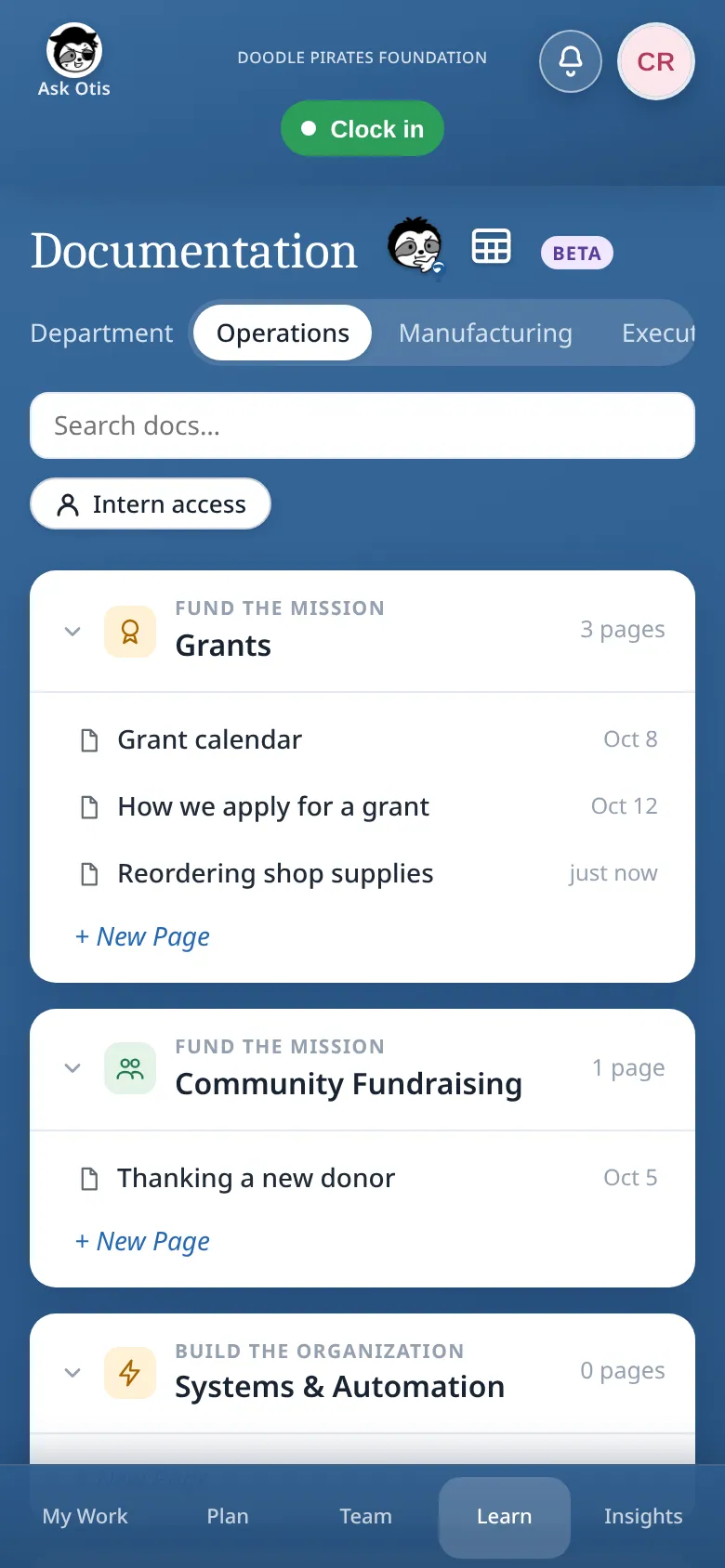
As Director of Business Operations at Doodle Pirates Foundation, I built one place in the Internal Dashboard to find, start and edit every process doc. Each page is a real Google Doc in the shared Drive.
- Org
- Doodle Pirates Foundation
- Role
- Director of Business Operations
- Stack
- React + Vite, Hono, Cloudflare Worker, Airtable, Google Docs and Drive
- Status
- Beta, under the Learn menu
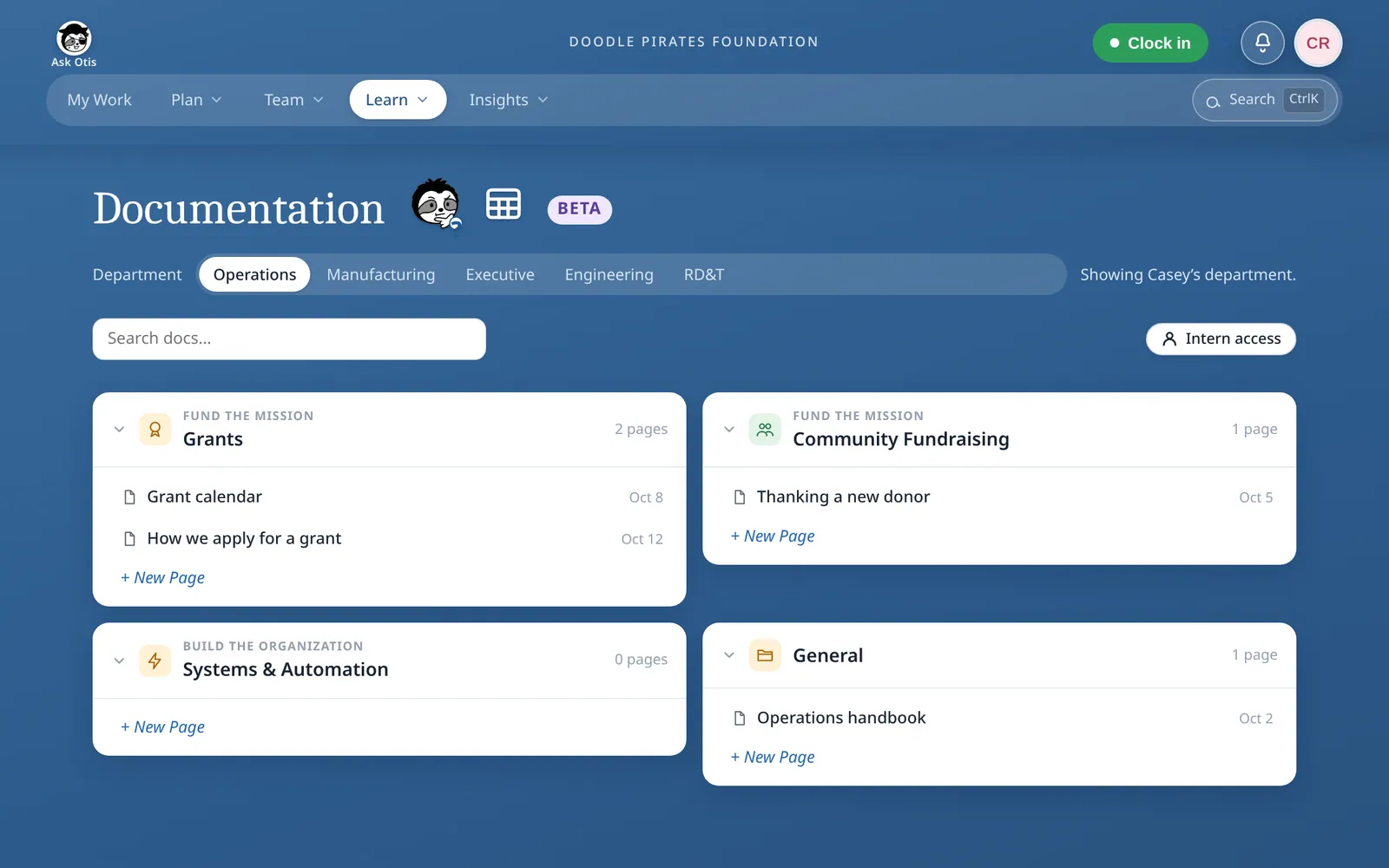
Counts come from the private code repository: merged pull requests that touch documentation, and documentation test cases.
The problem
Process docs were saved in different drives and folders, often not on the shared drive.
Each workflow had several versions of its doc, and nobody knew which one was official.
The approach
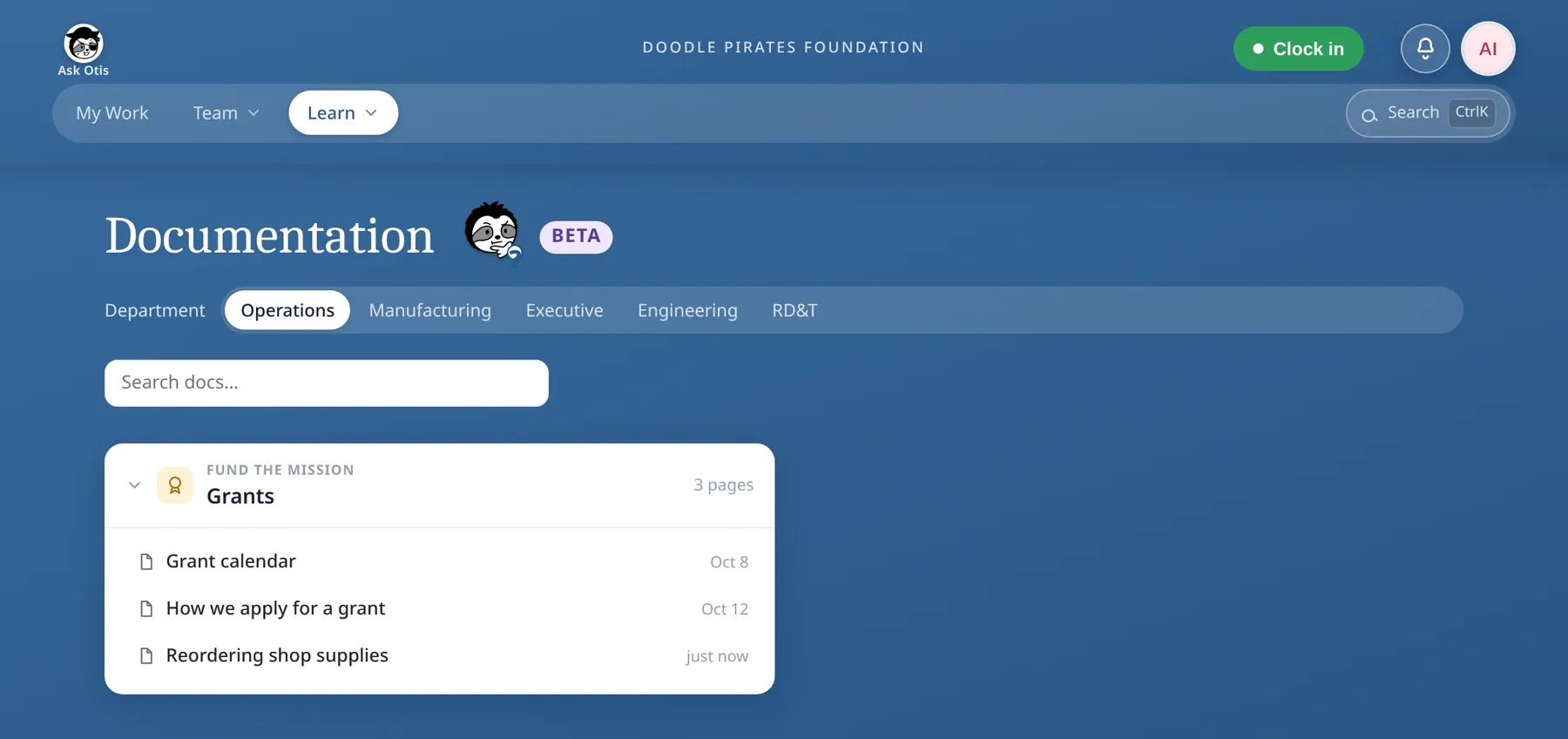
Every page is a real Google Doc in the shared drive. Each department has one Process Documentation folder, with a subfolder per business line.
The dashboard is the single front door. Staff find, start or edit a page without leaving it.
How it works
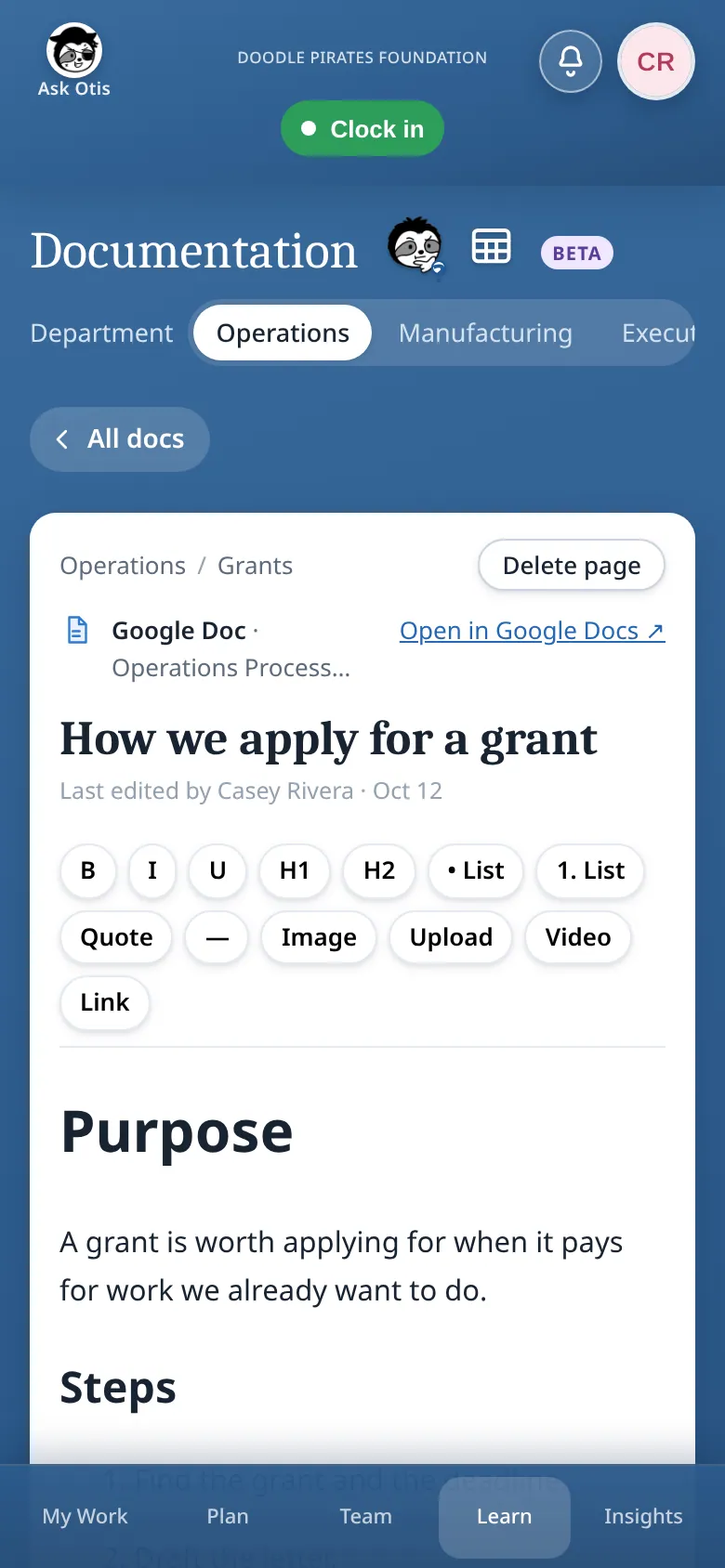
Start a page from scratch, or paste an anyone-with-link Google Doc link. It is copied in and tidied, and the original is never touched.
Edit live in the dashboard. Changes save to Google Docs about 3 seconds after typing stops.
- a page
- a Google Doc
- a page01New pagestart typing
- 02Edit live in the dashboardsaves ~3 seconds after typing stops
- a Google Doc03A Google Doc in the shared drivein its department and business line folder
- a page01Paste a Doc linkanyone-with-link
- Copied, tidiedoriginal kept→02 Edit live in the dashboard
Design decisions
- Edits never overwrite each other
Dashboard and Google Docs edits are reconciled by revision checks, and the app looks for outside edits about every 60 seconds. If both sides changed, a banner offers See what changed, Load their version or Keep mine.
- A wipe is refused
A save that would shrink or wipe a page by more than 80% is refused.
- Folders are only ever added
A nightly job creates any missing folders and never deletes anything.
- A fenced service account
One service account does all the reading and writing, and the app refuses anything outside the doc folders.
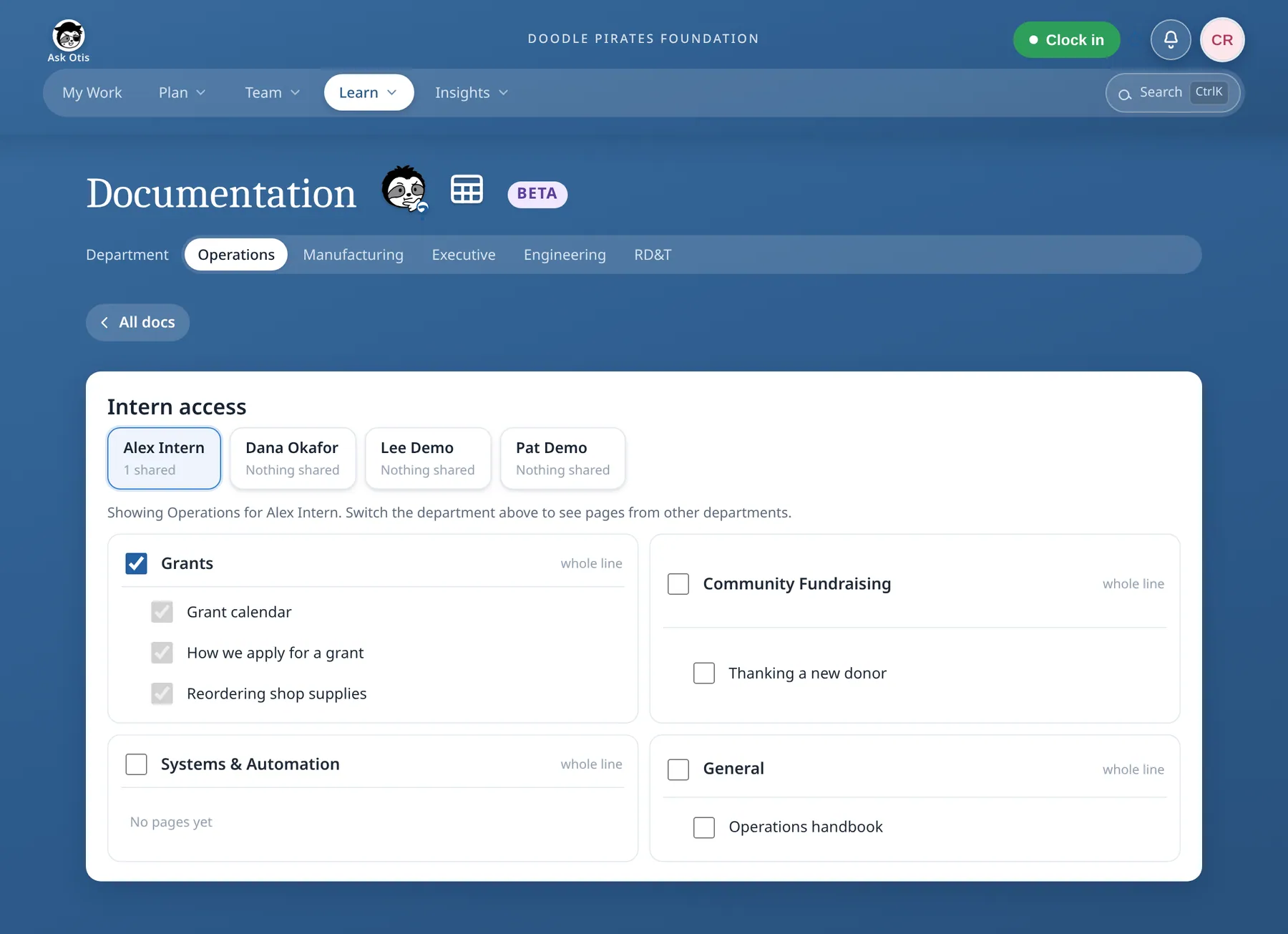
- Interns see only what they are granted
Interns and contractors see only the pages granted to them: a business line, a single page, or a department’s General folder. They never see Google links or file names. Airtable stores only these grants.
- File names keep the Drive searchable
Names follow a standard so the Drive stays searchable outside the app. The dashboard shows only the title.
DPFPrefixCSRInitials261023-0940Pacific date and timeReordering shop suppliesTitle
Who can do what
- Directors and managers
- Read, add, edit, delete
- Leads and individual contributors
- Read, add, edit
- Interns and contractors
- Read only the pages granted to them
Screens
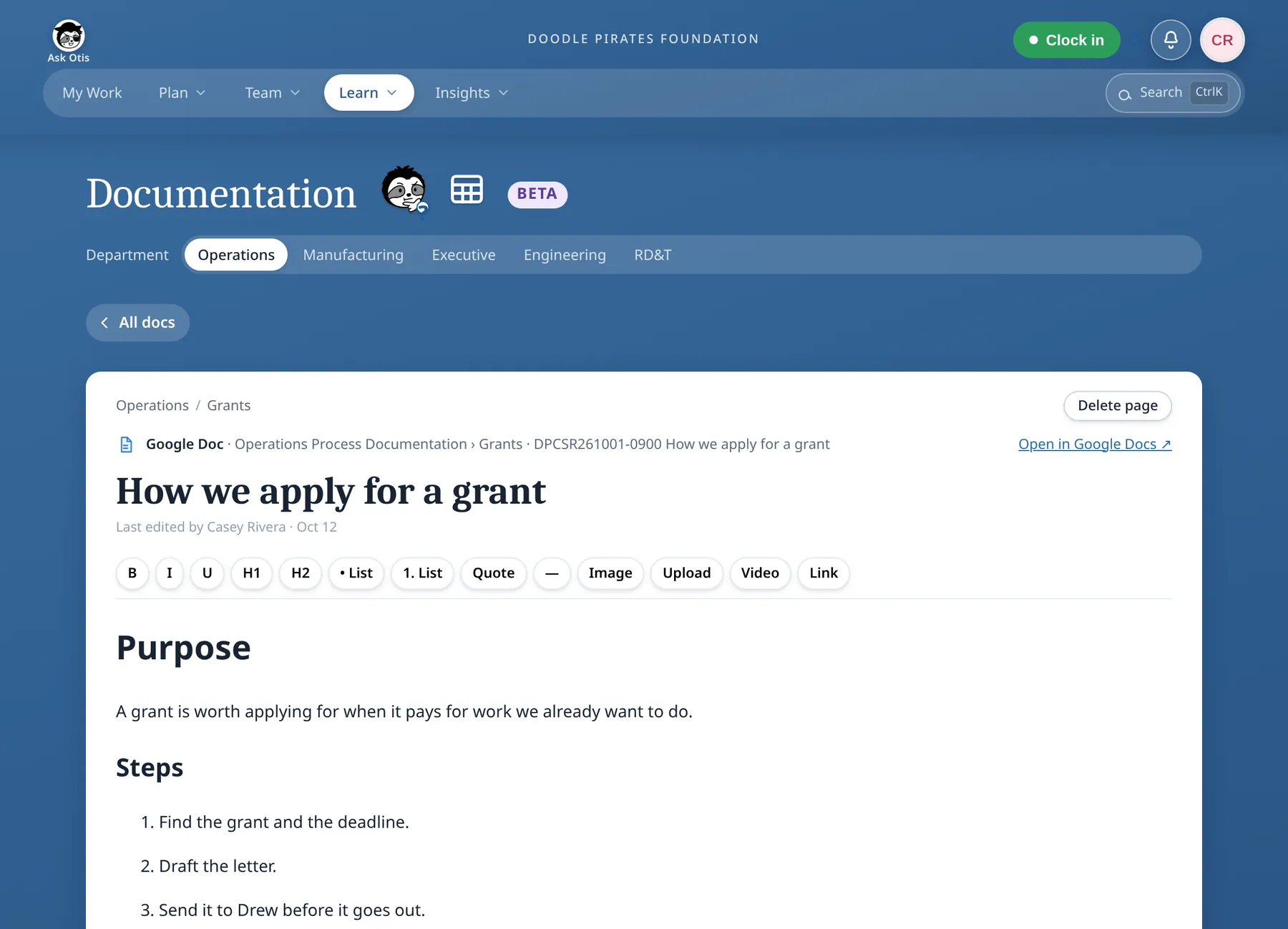
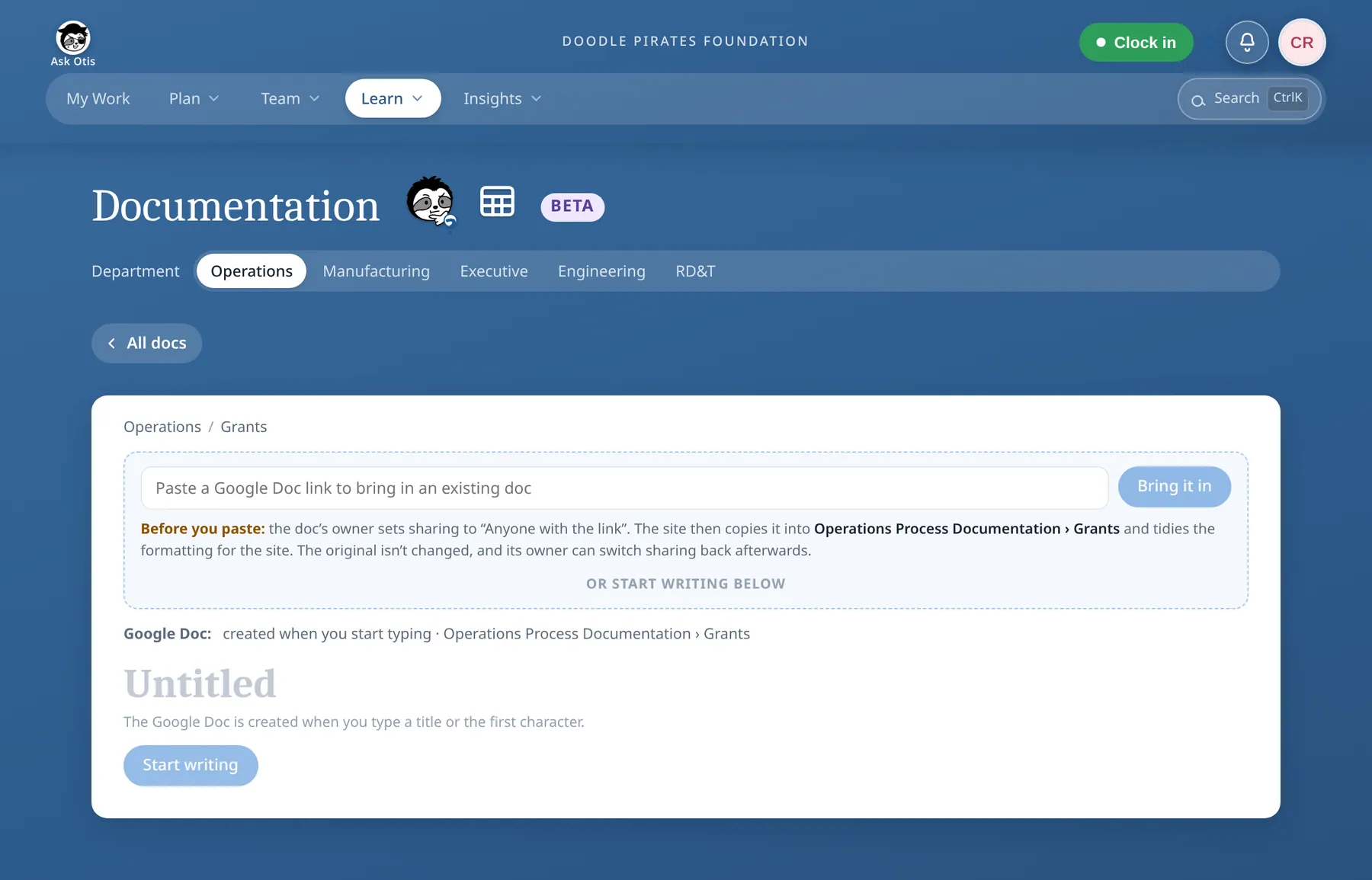
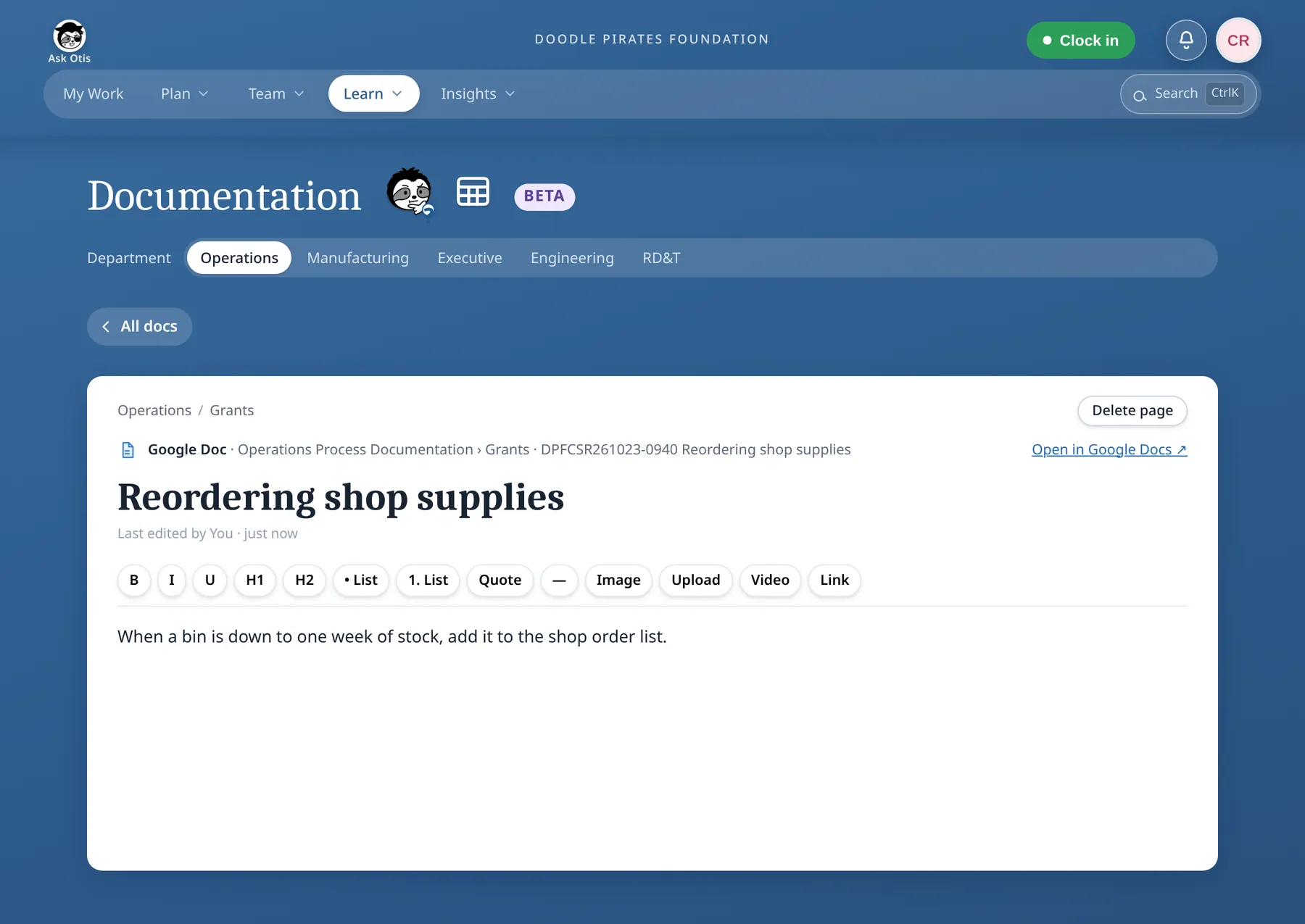
Outcomes
- Oct 14, 2026First version shipped.
- Oct 15Safety fixes followed.
- Oct 20 to 22More safety fixes.
Limits and what is next
- BetaIt sits under the Learn menu with a Beta label.
- No template systemEvery page starts blank or from a pasted Google Doc.
- No approval stepGoogle version history is the audit trail.
- No task-to-doc links yetTasks and process docs are not connected in the dashboard.